

SAP EWM Cycle Counting with RFUI: How to Enable the F3 "HU Complete" Button at Parent HU Level
Background
SAP Knowledge Base Article 3690318 documents a known SAP EWM limitation: the "HU Complete" button is not available in /SCWM/RFUI for product-specific Physical Inventory procedures such as Cycle Counting (CC).
As a result, warehouse workers performing cycle counting on nested HUs are required to open and scan every sub-HU and individual item within a pallet — even when the count at the parent HU level is sufficient.
In standard SAP EWM, there are two physical inventory document creation procedures:
Location-specific, such as HL, ML, AL, etc. represented by document category L
Object/product-specific, such as HS, AS, CC, etc. represented by document category O
The HU complete feature is available for the first category in physical inventory and is not available for the second category.
Since CC( Cycle counting) falls in the second category, certain features such as HU complete are not available on the /SCWM/RFUI as part of counting process.
This can be confirmed directly in the SAP EWM RF interface when the Cycle counting is performed:
Navigate to /SCWM/RFUI → Inventory Counting Manually → confirm a cycle counting warehouse order.
Use Ctrl+Shift+F1 to inspect the screen details:
Program: /SCWM/SAPLRF_INVENTORY
Logical Transaction: IVMCOU
Step: IVHU
Screen Number: 5010

On this screen, the system prompts the user to scan the parent HU and then validate all sub-HUs and items using Enter or F2. The F3 "HU Complete" button — available in location-based PI types such as HL and AL — is suppressed here.
Requirement
For cycle counting (CC), the F3 "HU Complete" button needs to be enabled on the IVHU step so that warehouse workers can set the complete status on the highest-level HU without being required to individually count lower-level HUs and their contents.
In standard SAP EWM, the F3 HU Complete function code (HUCOM) is available in location-based PI RF screens (HL, AL) but is deliberately suppressed for product-based PI types (HS, AS, CC).
Solution Overview Steps
Debug the existing RF logic for cycle counting physical inventory to understand why the button is suppressed
Create a custom function module that overrides the suppression
Assign the custom FM in configuration and test the end-to-end flow
Step 1: Debug the existing RF logic for cycle counting physical inventory to understand why the button is suppressed
1.1 Identify the RF Screens in the Cycle Counting Flow
Go to /SCWM/RFUI -> Path 'Inventory Counting Manually' -> Input Warehouse Order and press Enter
Navigate to /SCWM/RFUI → Inventory Counting Manually → enter the Warehouse Order number and press Enter.
Use Ctrl+Shift+F1 to confirm screen details:
Program: /SCWM/SAPLRF_INVENTORY
Logical Transaction: IVMCOU
Step: IVBIN
Screen Number: 5000
Press Enter to proceed to the next screen:
Logical Transaction: IVMCOU
Step: IVHU
Screen Number: 5010
This is the screen where the F3 Complete button is currently missing for cycle counting.


1.2 Trace the Step Flow Configuration
In SPRO, navigate to Define Steps in Logical Transactions and look up logical transaction IVMCOU, step IVBIN, function code Enter.
This reveals that when Enter is pressed in step IVBIN, the function module /SCWM/RF_BIN_IVBIN_PAI is executed. The next step is also IVBIN, with processing mode set to "Defined During Execution" and no background function code — which indicates that the next function code and step are determined dynamically within the FM itself.


1.3 Debug Function Module /SCWM/RF_BIN_IVBIN_PAI
Open SE37 and set a breakpoint on the call method of /SCWM/RF_BIN_IVBIN_PAI.
In /SCWM/RFUI, enter the Warehouse Order, press Enter, confirm the bin, and press Enter again to trigger the FM.
Step through the code using F6 (Execute) until the RF navigation logic is reached. Look for these two key method calls:
/scwm/cl_rf_bll_srvc=>set_prmod('1').
/scwm/cl_rf_bll_srvc=>set_fcode('HU').
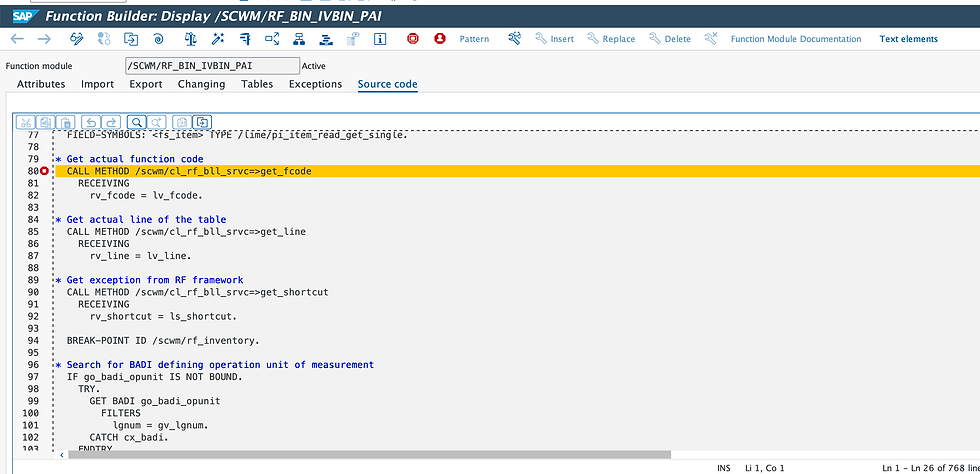


Enter

Enter

System stops at the call method of the FM where the breakpoint was placed.
Please note that all RF transactions have application logic and navigation logic in code.
Here we are concerned with the navigation logic first.
Click F6 execute and validate the function code LV_FCODE was 'Enter' for the PAI of the screen

Continue with F6 execute till you find the RF navigation logic
RF navigation logic is typically found with these lines of code where we can find process mode and function code:
/scwm/cl_rf_bll_srvc=>set_prmod('1').
/scwm/cl_rf_bll_srvc=>set_fcode('HU').

In this case, the required method calls are wrapped inside function module /SCWM/RF_BIN_NAVIGATION. Use F5 (Single Step) to trace into it and confirm that:
Processing mode is set to 1 (background)
Function code is set to HU

Cross-reference this with the step flow configuration: logical transaction IVMCOU, step IVBIN, function code HU transitions to next step IVHU, which is then executed in the background with function module /SCWM/RF_HU_IVHU_PBO.


1.4 Debug the PBO Function Module /SCWM/RF_HU_IVHU_PBO
Now debug FM /SCWM/RF_HU_IVHU_PBO to understand why F3 complete button is disabled.
While still in debug mode, add a breakpoint on /SCWM/RF_HU_IVHU_PBO using the Create button. Press F8 to let execution continue until the breakpoint is hit.
Inside this FM, step through using F6 and look for calls to:
/scwm/cl_rf_bll_srvc=>set_fcode_off( )

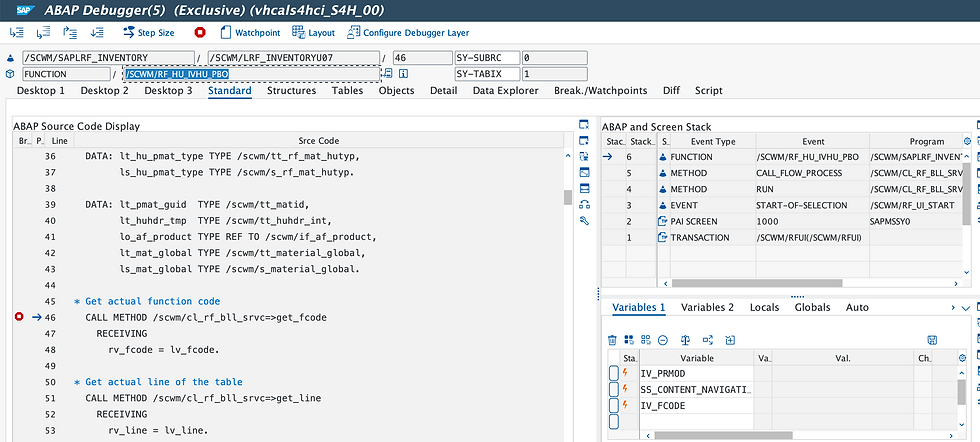
This method disables specific function code buttons on the RF screen. You will find a subroutine (using statement PERFORM belwo) containing the following logic — accompanied by a SAP comment explaining that for product-based physical inventory types (HS, AS), pushbuttons F1 and F3 are disabled:
IF get_pi_category( iv_doc_type ) = limpi_object.
/scwm/cl_rf_bll_srvc=>set_fcode_off( 'HUCOM' ).
ENDIF.
What this means:
get_pi_category() looks up the PI category for the current document type
limpi_object represents the Object-based PI category (product-specific: HS, AS, CC)
When the condition is true, the HUCOM function code (F3 HU Complete) is switched off


Use F5 (Single Step) into the IF block to confirm the document type. In the cycle counting scenario, doc_type = CC, which is classified as category O (Object-based), triggering the suppression.

Reference: You can inspect the PI document type categories in table /LIME/PI_DOCTYPE via SE16H. This table maps document types such as CC to their PI category (O = Object-based, L = Location-based).

Step 2: Create a Custom Function Module and Assign It in Configuration
2.1 Create a Custom Function Group
In SE37, initiate a copy of FM /SCWM/RF_HU_IVHU_PBO. Note its current function group: /SCWM/RF_INVENTORY.
Before copying, create a new custom function group in your Z-namespace (e.g. ZCWM_RF_INVENTORY) to house the new FM. This ensures the custom code is cleanly separated from the SAP standard.


2.2 Create the Custom Function Module
Copy /SCWM/RF_HU_IVHU_PBO into the new function group and name the new FM (e.g. ZCWM_RF_HU_IVHU_PBO).
In the custom FM, call the original standard FM first, then immediately re-enable the HUCOM function code:
CALL FUNCTION '/SCWM/RF_HU_IVHU_PBO'
" ... pass through all parameters
" Re-enable F3 HU Complete for cycle counting
/scwm/cl_rf_bll_srvc=>set_fcode_on( 'HUCOM' ).
This approach is clean and upgrade-safe: it delegates all standard logic to SAP's FM and simply overrides the button suppression afterwards.
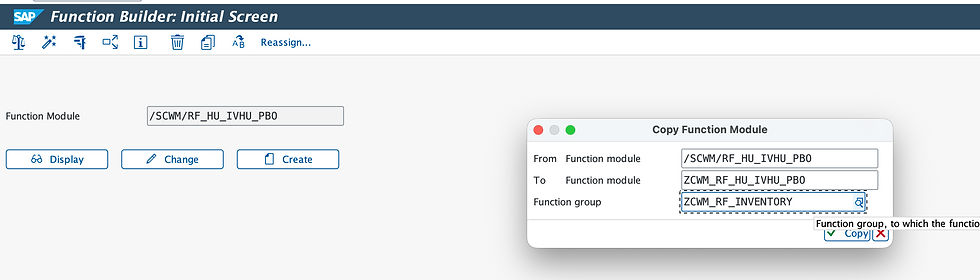
Click Copy

Click change

2.3 Assign the Custom FM in Configuration
In SPRO, navigate to Define Steps in Logical Transactions and replace the PBO function module for logical transaction IVMCOU, step IVHU, function code HU:
Custom FM: ZCWM_RF_HU_IVHU_PBO
Original FM: /SCWM/RF_HU_IVHU_PBO

With this in place, when step IVHU is executed in the background with function code HU, the custom PBO FM fires — re-enabling the HUCOM button before the screen is rendered in the foreground.
The IVHU step's second state is mapped to screen 5010 (confirmed in the sub-screen configuration), which is where F3 HU Complete will now appear.

Step 3: Test the End-to-End Flow in RF for Cycle Counting
In /SCWM/MON, identify a nested HU and verify its structure (parent HU containing sub-HUs and products).

Create a cycle counting PI document for the relevant product using /SCWM/PI_CC_CREATE. Confirm the active CC PI document in the monitor and note the generated Warehouse Order number.

WO 2005523 created for PI CC document
In /SCWM/RFUI, navigate to Inventory Counting Manually, enter the Warehouse Order, and proceed through the flow.
On screen 5010 (step IVHU), confirm that the F3 HU Complete button is now visible.
Scan the highest-level HU. The system will mark it with an X (complete flag).
Press F3 HU Complete. The system sets the complete status on the parent HU.
Press F11 Save.


Check that function code F3 HU complete has been enabled on this screen for cycle counting physical inventory now
Scan the highest level HU number

Highest Level HU has been marked with an X

Check the status has been set as complete against the Highest level HU after F3 HU complete was clicked
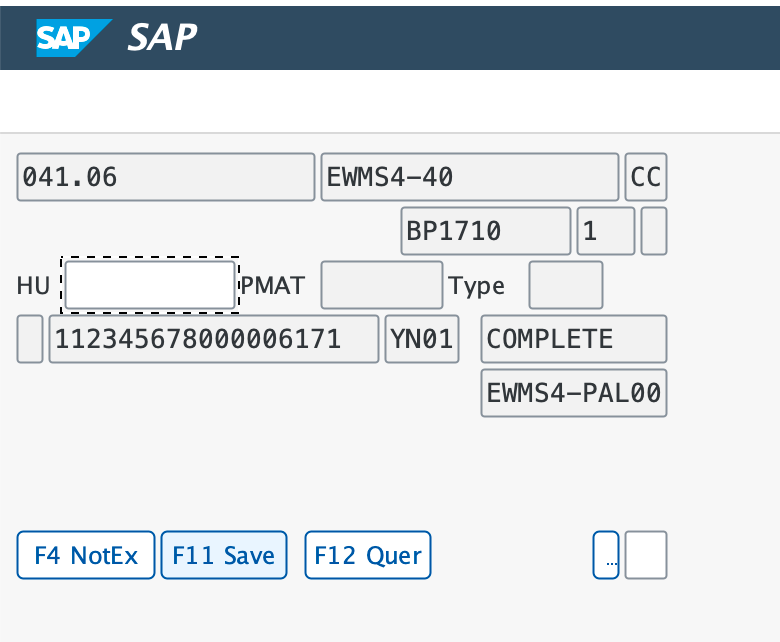
F11 Save

Return to /SCWM/MON and confirm the cycle counting PI document has moved to Posted status.
Result: The warehouse worker successfully completes the cycle count at the parent HU level, without scanning sub-HUs or individual products.


Comments